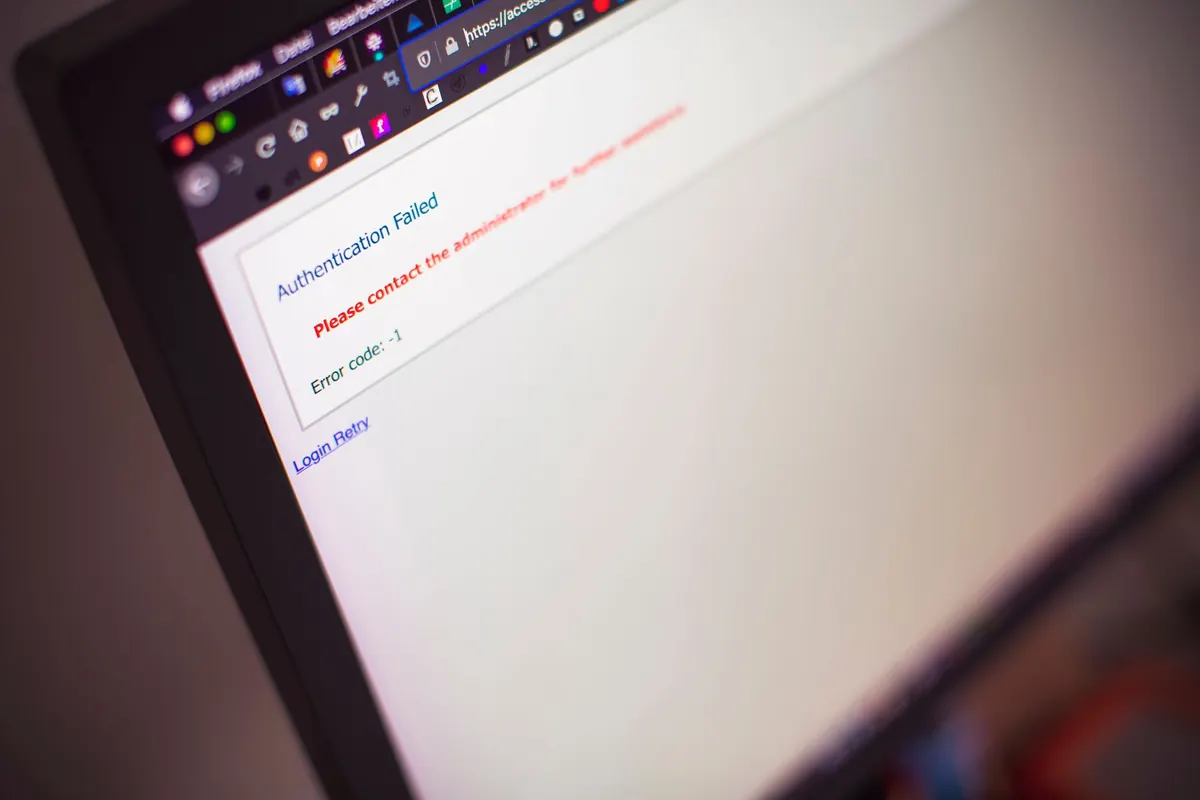
The first sign is rarely dramatic. A video call stutters at eight in the evening, or the router's activity light keeps blinking after everyone has gone to bed. Then you open the admin page and see something called ESP_4B21A0 or android-9f3c in the device list, and nobody in the house claims it. Unknown devices are not automatically intruders — most turn out to be a smart plug, a neighbour borrowing your Wi-Fi once, or your own phone showing up twice. But every one of them deserves five minutes of your attention. Here is how to find out what is actually on your network and close the door behind it.
Start With a Guest List, Not a Scanner
Scanning before you know what belongs on your network is how people end up factory-resetting a router over a forgotten printer. So begin with paper, or a note on your phone. Walk through the house and list everything that connects to Wi-Fi or Ethernet: phones, laptops, tablets, the TV, the streaming stick, game consoles, the printer, the thermostat, the doorbell, smart bulbs, plugs, speakers, robot vacuum, and any work laptop that occasionally joins from home.
Do not forget the boring ones. An e-reader that syncs once a week, an old tablet in a drawer, a car that connects to your home Wi-Fi to download updates. The goal is a rough headcount, not perfection. If you count fourteen devices and the router shows nineteen, you know there is something to explain.
Find What's Already Connected
Your router is the fastest source of information. Type its address into a browser — usually 192.168.1.1 or 192.168.0.1, and the exact address plus the admin password are printed on a sticker on the unit. Look for a menu called Attached Devices, DHCP Clients, Device List or Connected Devices, depending on the brand.
You will get hostnames, IP addresses, and MAC addresses. Hostnames are often useless — a laptop might appear as DESKTOP-7K2LP or nothing at all. The MAC address, a string like A4:5E:60:1B:22:9C, is the more reliable identifier, because the first half identifies the manufacturer. Copy the whole list into a note before you change anything.
Scan the Network Yourself
Router lists update slowly and sometimes hide devices in a sleep state. A quick scan from your own computer or phone catches more. You do not need to be a network engineer for this.
- Phone app. Install a network scanner such as Fing or Network Analyzer. One tap scans the subnet and shows every device that answers, with manufacturer names where they can be resolved.
- Windows. Open Command Prompt and run the command that follows, replacing the address with your router's subnet: for /L %i in (1,1,254) do @ping -n 1 -w 100 192.168.1.%i, then type arp -a to list what replied.
- macOS or Linux. The same idea works from the terminal: ping the range, then run arp -a or ip neigh.
- nmap, if you are comfortable with command-line tools, does this properly in one line: nmap -sn 192.168.1.0/24. The -sn flag performs a ping sweep without probing ports.
Run the scan twice, an hour apart. Devices that appear in both lists are worth identifying.
Reading the Results Without Panicking
Most "unknown" entries have mundane explanations. Modern phones and laptops rotate their MAC address for privacy, so the same iPhone can show a different address each time it joins — look for locally administered addresses where the second character of the first pair is 2, 6, A or E, like DA: or 3A:. Phones also often appear twice, once on 2.4 GHz and once on 5 GHz.
Hostname patterns help too. Names beginning with ESP, Tuya, Shelly or Sonoff are usually cheap smart-home chips. Amazon, Roku or Chromecast are streaming devices. A name that looks like a random string of letters and numbers, combined with a manufacturer you have never heard of, is the entry worth investigating. Paste the MAC prefix into any public OUI lookup to see who made the hardware.
Locking Down the Router
Once you know what is on the network, make it harder to join. These changes take about twenty minutes and cover the gaps attackers actually use.
- Change the admin password. The router's login is the keys to the building. Use a long, unique passphrase, not the one on the sticker.
- Use WPA2-AES at minimum, and WPA3 if your router supports it. Avoid the old TKIP and WEP options entirely.
- Turn off WPS. The push-button pairing feature has a long history of being brute-forced. Disable it if you are not using it.
- Update the firmware. Check the manufacturer's page rather than trusting an auto-update that may have been switched off years ago.
- Disable remote administration and UPnP unless something specific needs them. Both expose management features to the internet side.
- Create a guest network for visitors and, ideally, for smart-home gear, so a compromised bulb cannot reach your laptop.
- Skip MAC filtering as a security measure. It blocks casual freeloaders but is trivially spoofed, and it will lock out your own devices.
If You Find Something That Shouldn't Be There
Do not confront the device — cut it off. Change the Wi-Fi password first, which disconnects every device, then reconnect your own gear one by one and watch the list as you go. Reboot the router and check for signs you did not configure: port forwards you never added, a DNS server you do not recognise, or an SSID that looks like yours but is not. If a specific device on your own network is behaving strangely, run a malware scan on it.
If the entries keep coming back after a password change, a factory reset of the router with new credentials is the reliable answer. And if your home network carries work devices or sensitive data and you suspect a genuine breach, it is reasonable to bring in a professional rather than guess.
Make It a Ten-Minute Habit
You do not need weekly audits. Four times a year is plenty: open the device list, compare it against your guest list, and remove anything you cannot name. Label the ones you do recognise in the router's settings where that option exists, add new gadgets to your note when you install them, and keep the firmware current.
The point is not paranoia. It is knowing, with reasonable confidence, exactly what is on your network — so that when something unfamiliar does appear, you notice it in ten seconds instead of discovering it months later through a slow connection and a nagging feeling you cannot place.
Photo: Jakub Zerdzicki / Pexels