Public Wi-Fi Safety: A Holiday Traveler's Guide to Secure Connections
The departure board flickers, the coffee has gone cold, and your phone has already found a network called Free_Airport_WiFi. You tap Connect without thinking, because the boarding pass is in your inbox and the airline app won't load on patchy mobile data. Ten minutes later you've checked a bank balance, answered a work email, and started a download on the tablet. None of that is reckless on its own. The problem is that you have no idea who is running the network you just joined — and holiday travel makes it worse, because you're tired, rushed, and carrying devices you don't normally take out of the house.
What can actually go wrong
Most public Wi-Fi is boringly normal. Hotels and airports run it because guests expect it, not because they want your passwords. But three realistic problems show up again and again.
Spoofed networks. Anyone with a laptop can broadcast a hotspot named "Airport_Free_WiFi" or "Hotel_Guest" in a departure lounge. Your phone remembers network names, not owners, so it may join without asking. From there, the operator can serve a fake login page or watch anything that isn't encrypted.
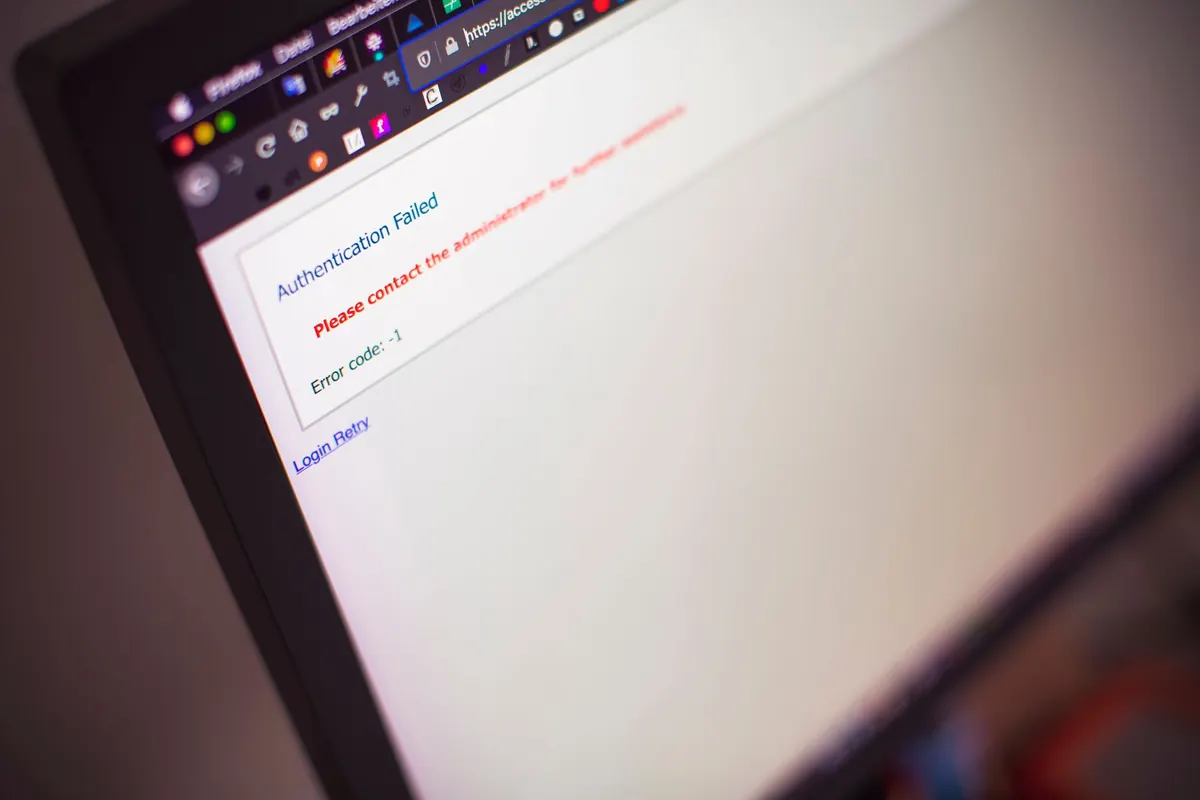
Captive portals that harvest credentials. A page asking for your room number is fine. A page asking for your email address and a password you use elsewhere — then failing and asking you to try again — is not. That second attempt is often the real goal: a free, hand-delivered login that works on other sites.
Plain, unencrypted traffic. Plenty of apps and smaller booking sites still send data over HTTP. On a shared network, that content can be read. Even if the page looks normal, an old booking engine or a hotel's local information site may not encrypt the session.
Device-to-device snooping. Some public networks are configured so loosely that other guests can see your laptop or phone on the network. If you left file sharing, AirDrop, or a printer connection open, a stranger may try to reach it. This is not a daily occurrence, but it is the kind of thing that turns a relaxed airport coffee into a bad afternoon.
HTTPS already does a lot of the work
Look for the padlock. HTTPS encrypts the connection between your browser and the website, so the person at the next table cannot read your emails or card details as they cross the network.
What it doesn't do: hide which sites you visit from whoever runs the network, or protect you if you're looking at a convincing copy of a site rather than the real one. It also does nothing for apps that still speak in plain text.
So obey browser warnings. If Chrome or Safari tells you a certificate is wrong, close the tab. Don't click through, especially on a bank or webmail login page. A padlock on a phishing site means almost nothing; the certificate can be valid while the site itself is a trap.
- Check the address. The padlock should sit next to the exact domain you expect, not a lookalike with an extra hyphen or a strange ending.
- Use bookmarks. Typing a bank's name into a search engine on public Wi-Fi can lead to a sponsored fake.
- Watch for downgrades. If a site you know is HTTPS suddenly loads as HTTP, stop and reconnect later.
Before you leave: a five-minute setup
The best public Wi-Fi security is done before you reach the airport. A few small changes make every later decision easier.
- Update your devices. Install operating system and app updates before the trip. Security fixes are the cheapest protection you have.
- Turn on two-factor authentication. Use an authenticator app or a hardware key where possible. A stolen password is far less useful when a second code is required.
- Install a password manager. It will not reuse passwords, and it will not be fooled by a fake login page as easily as you might be when you are tired.
- Set up a mobile hotspot. Know how to turn your phone into a personal hotspot and check your data plan. It is the simplest alternative for banking or work email.
- Disable auto-join. Tell your phone, tablet, and laptop not to join open networks automatically. Forget old networks you no longer need.
- Turn off file sharing. On a laptop, switch off public folder sharing, AirDrop for everyone, and any printer sharing before you travel.
- Pack a VPN if you use one. A reputable VPN creates an encrypted tunnel, which is useful on hotel and airport networks. It is not magic, and it will not fix a phishing site, but it adds a layer.
Treat every public network as if a stranger were reading over your shoulder. You do not need to be paranoid; you just need to avoid handing over the one password that unlocks everything else.
When you have no choice but to use public Wi-Fi
Sometimes the mobile signal is dead, the hotspot will not connect, and you have to use the airport network. That is fine. Adjust what you do rather than refusing to go online.
- Confirm the network name with staff. Ask the desk or gate agent for the exact SSID, then connect manually. Do not trust a network just because it appears at the top of the list.
- Read the portal page carefully. If it asks for more than a room number, last name, or a one-time code, close it.
- Stick to HTTPS sites. If a site does not show a padlock, do not enter personal information.
- Save sensitive tasks for later. Banking, tax filing, medical portals, and password resets can usually wait until you are on a trusted network or your own hotspot.
- Log out when you finish. Closing the tab is not always enough. Use the site's logout button, especially on webmail and banking sites.
- Use two-factor authentication. If a password does leak, 2FA is the lock that still holds.
- Turn Wi-Fi off when you are done. Your device will stop probing for networks and stop joining old ones by habit.
The mobile hotspot alternative
For most travelers, the safest connection is the one you carry. Your phone's hotspot is encrypted with a password you control, and it does not depend on a hotel's router or an airport's captive portal. Use it for the tasks that matter: checking a bank balance, sending a work file, or logging into an account that does not offer strong two-factor authentication.
Keep an eye on battery and data. Video calls and large uploads can burn through a plan quickly. If you are traveling internationally, check roaming rates before you rely on it, or buy a local data eSIM. A cheap data package is often less stressful than a free network you do not trust.
If you think something went wrong
Maybe you entered a password on a page that now looks suspicious. Maybe your browser warned you and you clicked through anyway. Act quickly rather than hoping it was nothing.
- Change the password from a trusted connection, such as your hotel room's wired network or your mobile hotspot.
- Change it everywhere you reused it. This is why unique passwords matter.
- Check your account activity. Look for unfamiliar logins, sent messages, or purchases.
- Enable or reset two-factor authentication. If it was already on, check that the recovery details are still correct.
- Run a security scan if you downloaded anything or accepted a strange prompt.
- Tell your bank or IT team if financial or work accounts are involved. Early reports limit the damage.
The calm version of public Wi-Fi safety
You do not need to avoid every free network for the rest of your life. You need a simple hierarchy: use your own hotspot for anything sensitive, use public Wi-Fi for low-risk browsing, verify before you connect, and let HTTPS and two-factor authentication do their jobs. Holiday travel is chaotic enough. A few habits before you leave — and a little restraint at the airport — will keep your accounts out of the hands of the person running the fake hotspot two gates down.
Photo: NHP&Co / Pexels