A friend walks in, asks for the Wi-Fi password, and thirty seconds later it lives in their phone's saved networks — and probably in a screenshot or a text thread too. That's fine for a streaming password. It's less fine when your laptop holds client files, your NAS holds a decade of photos, and your printer, thermostat and doorbell all sit on the same network. A guest network turns that moment from a small act of trust into a contained, temporary convenience.
Setting one up takes about fifteen minutes on most routers made in the last several years. What follows is the practical version: what to turn on, what to name it, and which settings actually keep visitors away from the devices that matter.
What a Guest Network Really Is
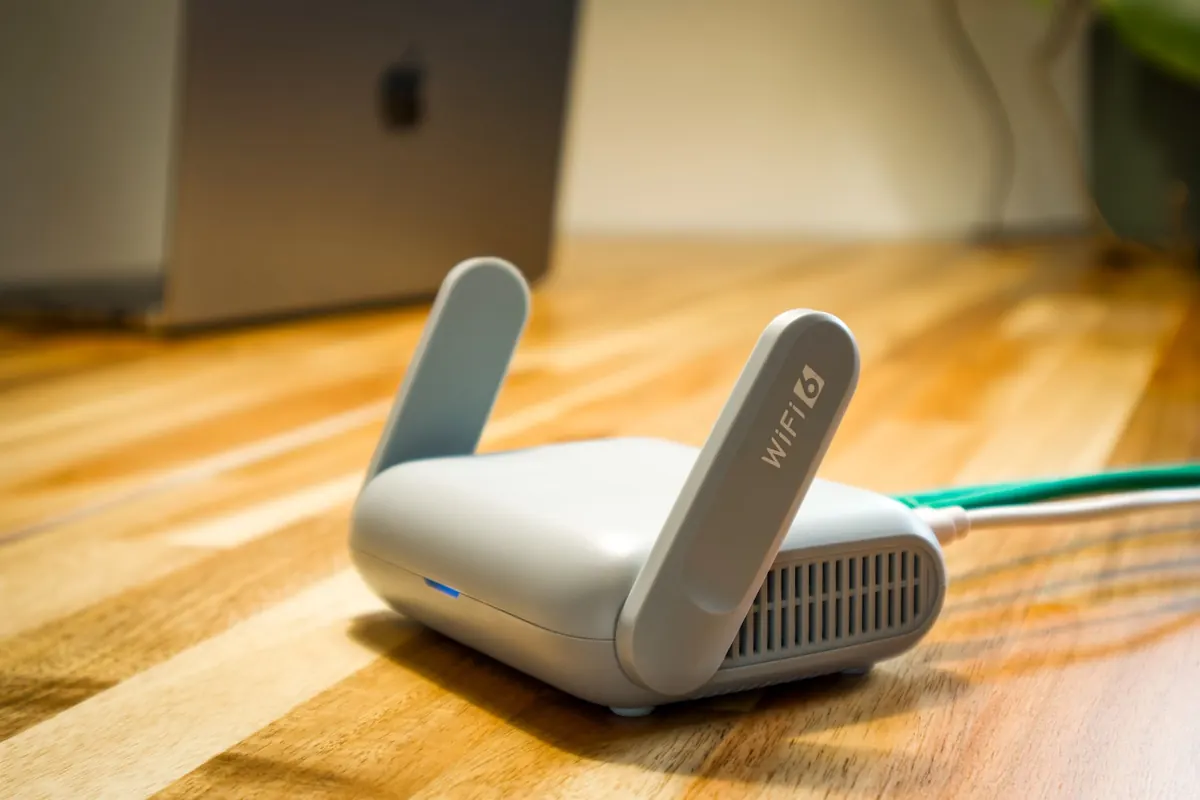
Most home routers ship with a guest network option buried in the admin panel. It creates a second wireless name (SSID) with its own password, broadcasting alongside your main network. The point isn't the extra name — it's the separation. A guest network is meant to be its own segment, so a visitor's phone reaches the internet but not the shared folder on your desktop.
That separation is the part you have to verify, because it isn't automatic on every model. Some routers put guests on a separate subnet and block traffic between clients; others just add a second password to the same flat network, which protects nothing. Look for settings labeled Client Isolation, AP Isolation, or Guest Network Isolation. If your router has no guest option at all, or offers one that doesn't isolate, that's usually a signal to consider replacing it rather than working around it.
Setting It Up, Step by Step
- Get into the router's admin page. Type the gateway address (often 192.168.1.1 or 192.168.0.1) into a browser, or use the vendor's app. If you never changed the admin password, change it now — it's a bigger hole than your Wi-Fi password.
- Find the guest network section. Usually under Wireless, Wi-Fi, or Network settings. Some vendors tuck it under "Guest Access" or "Temporary Network."
- Give it a distinct name. Skip anything that identifies your household or address. "GuestHouse" or "BlueChair" is plenty; "Apt4B_Rodriguez" is not.
- Set a different password from your main network. Non-negotiable. Same password means the separation is cosmetic.
- Choose WPA2-AES, or WPA3 if the router offers it. Avoid Open networks entirely — an open guest SSID means anyone in range gets in, not just your visitors. WEP is not a real option anymore.
- Turn on client isolation. This is the setting that stops guests from reaching your devices, and stops guests from reaching each other.
- Add a schedule or time limit if the router supports it. A guest network that switches off at 11 p.m. is one less thing running while you sleep.
- Save, reboot if needed, then test. Don't skip the test. More on that below.
Pick a Password You Can Say Out Loud
The usual mistake is making the guest password short because you have to read it aloud. That's backwards. Four or five unrelated words — copper-lantern-puzzle-orbit — are much harder to crack than Sunshine2024 and just as easy to dictate across a kitchen. Length does more for strength than a sprinkle of symbols, and a long passphrase avoids the awkwardness of capitals and exclamation marks that a TV remote can't handle.
Two habits make this easier. Write the guest password down somewhere the household can find it, so you're not re-deriving it every time someone visits. And after a large gathering — a party, a contractor's visit, a weekend of relatives — change it. Rotating a password takes a minute and costs you almost nothing.
Some routers support a temporary guest password that expires after a set number of hours. If yours does, use it. It's the closest thing to a front-door key you can hand out and forget about.
Isolation Is Doing the Real Work
What it blocks
- Guest devices reaching your computers, NAS, printer, or the router admin page.
- Guest devices reaching each other, which matters on a network where not every phone belongs to a friend.
- Common local-network discovery tricks that let a device scan for open shares and services.
What it doesn't do
Isolation doesn't encrypt traffic between a guest and the website they're visiting, doesn't block malicious sites, and doesn't hide your traffic from your internet provider. It's a boundary, not a shield — a useful boundary, but set your expectations accordingly.
Time Limits, Bandwidth, and the Smart-Home Trap
A guest network that runs permanently is mostly harmless, but scheduling adds control. If your router supports time-of-day rules or session limits, use them: the guest SSID can simply be unavailable overnight, when no visitor needs it and nobody's watching.
Bandwidth caps are worth a look if your connection is modest. One guest device running a large backup or update can make your own video call stutter, and most routers let you throttle the guest segment. Set it low enough to be polite, high enough that guests don't notice.
One warning: don't move your own smart bulbs, cameras, and speakers onto the guest network to "keep them contained." Isolation often prevents those devices from talking to each other or to your phone, which breaks casting and local control. Guest networks are for visitors.
Test It Before Anyone Arrives
Connect your own phone to the guest SSID and check three things. Internet works — load a page. Your main devices are unreachable — try to open your desktop's file share or the router admin page; both should fail. And guests can't see each other — connect a second device and try to reach the first. If any of those tests fails, isolation isn't actually on, and you'll want to fix that before you hand the password out.
A Five-Minute Routine Worth Keeping
Keep the guest network separate, keep the password long and unique, keep isolation switched on, and keep the router's firmware updated — installing those releases is the least glamorous way to stay safer, and most vendors include security fixes in them. Change the guest password after events where a lot of people connected. If the router can't isolate guests at all, replacing it is a reasonable upgrade, and any current mid-range model will do the job.
Do this once and the next time a visitor asks for the Wi-Fi, you'll hand over a password instead of a piece of your home network. That's the whole trick: hospitality with a boundary, set up in advance.
Photo: Pascal 📷 / Pexels