Most home routers ship with a firewall already switched on, and for many households that's genuinely enough. The catch is that you rarely see what it's doing. You can't easily tell which device is trying to phone home at 2 a.m., or whether that cheap IP camera is quietly listening on a port for anyone who asks. A dedicated firewall puts that information in front of you and gives you a place to make decisions: this traffic comes in, that traffic does not.
The good news is that setting one up isn't a weekend project. With the right hardware and a clear plan, you can go from sealed box to working firewall in about half an hour. Here's how.
What a home firewall actually does
A firewall decides whether a packet is allowed through. That's the whole job. Everything else — logging, dashboards, alerts, traffic graphs — exists to help you make that decision.
Two directions matter. Inbound rules control traffic arriving from the internet: someone scanning your connection, a remote access attempt, a bot hunting for an open port. Outbound rules control what your devices can reach. Most home firewalls block nearly all inbound traffic by default, which is exactly what you want, and allow most outbound traffic, which is convenient but worth tightening.
Be realistic about the limits. A firewall won't stop you from typing your password into a fake login page, and it won't clean up malware already running on a laptop. It's the gate, not the whole house.
Choose the right hardware for your setup
There are three realistic routes, and the right one depends on how much time and curiosity you have.
- Your existing router. If it has firewall settings, VLAN support, and a decent admin interface, start there. It's free and it's already plugged in. Consumer routers vary a lot, so check the manual for what yours can actually do.
- A dedicated appliance. Devices running pfSense, OPNsense, Firewalla, or similar give you real rule control, per-device visibility, and useful logs. Expect a learning curve of an evening or two, and a price above what a basic router costs.
- A mini PC with firewall software. Cheapest per unit of power, most flexible, most work. A good fit if you enjoy tinkering and don't mind rebuilding when something breaks.
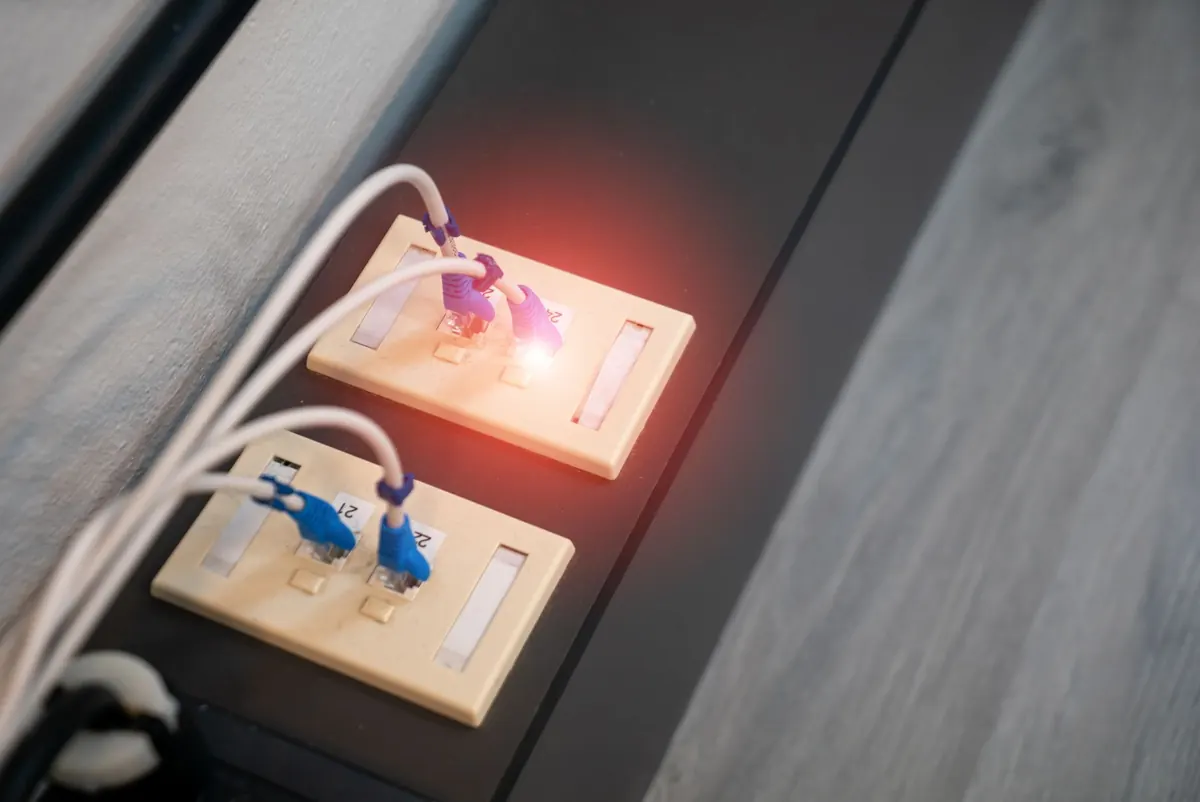
One practical constraint: your firewall needs two network ports at minimum — one for the internet side (WAN) and one for your home network (LAN). Many small appliances come with four, which makes life easier.
Put it in the right place
Placement matters more than any setting you'll click later.
- Your internet connection enters through a modem or ONT.
- The firewall's WAN port connects to that modem.
- The firewall's LAN port connects to your switch or Wi-Fi access point.
- Every device sits behind the firewall — including the smart TV and the doorbell.
If your modem also does routing, you'll end up with a double-NAT situation. The cleaner option is putting the modem into bridge mode so the firewall handles routing. Not every ISP allows this, and a quick call to support is worth it if the setting isn't obvious. If bridge mode isn't possible, it still works; you just have an extra layer to remember when troubleshooting.
The first twenty minutes: basic configuration
Plug in, connect a laptop to a LAN port with an Ethernet cable, and open the admin interface at the address printed on the device. Then work through this list before you touch anything else.
- Change the default admin password. Do this first. Long, unique, stored in a password manager.
- Update the firmware. Firewalls are security devices, which means they get patched often. Start current.
- Leave the WAN on DHCP unless your ISP gave you static details.
- Enable DHCP on the LAN so devices get addresses automatically, and pick a subnet that doesn't clash with your old one.
- Turn off remote administration from the WAN side. You should never be able to log in to your firewall from a hotel Wi-Fi network unless you deliberately set up a VPN.
- Disable UPnP unless you have a specific reason to keep it. It makes games and consoles easier to connect, and it also lets any device on your network open a hole without asking you.
Rules worth writing on day one
Defaults do most of the work. Inbound: deny all, then allow nothing. That single stance blocks the overwhelming majority of opportunistic scanning, and it costs you nothing.
Outbound is where you should think. A reasonable middle ground for a home network is to allow outbound by default but block or log a few categories — outbound connections to known-bad address lists, if your platform supports them, and any traffic from your guest network toward your main LAN. Guests, visitors, and the cheap smart devices you don't fully trust belong on a separate network with no path to your laptop or NAS.
If you run services — a media server, a home lab — resist the urge to forward ports from the internet. A VPN into your own network is the safer pattern, and most firewall platforms include one.
Test it, then keep it honest
From outside your network, run a port scan against your public IP address using a reputable online scanner. Everything should come back filtered or closed. If something is open, find out why before you move on.
Then check the logs once a week for the first month. Blocked inbound attempts are normal background noise. What you're looking for is a device on your network reaching out somewhere you don't recognize, or a rule you wrote that isn't behaving the way you expected.
Where to stop
A home firewall doesn't need to be perfect, and you shouldn't aim for a state where you approve every packet by hand. Aim for three things: nothing inbound is open that you didn't deliberately open, your untrusted devices can't reach your trusted ones, and the device stays patched.
Schedule a firmware check monthly and a rule review every few months. Once those are covered, your network is in better shape than most — and you got there in less time than it takes to watch a film.
Photo: panumas nikhomkhai / Pexels